You haven't signed in yet, you can have a better experience after signing in
BusyContacts for macOS Professional Powerful Contact Manager Software
Activity Rules
1、Activity time:{{ info.groupon.start_at }} ~ {{ info.groupon.end_at }}。
1、Activity time:cease when sold out。
2、Validity period of the Group Buying:{{ info.groupon.expire_days * 24 }} hours。
3、Number of Group Buying:{{ info.groupon.need_count }}x。
Please Pay Attention
1、Teamwork process: Join/initiate a Group Buying and make a successful payment - Within the validity period, the number of team members meets the activity requirements - Group Buying succeeded!
2、If the number of participants cannot be met within the valid period, the group will fail, and the paid amount will be refunded in the original way.
3、The number of people required and the time of the event may vary among different products. Please pay attention to the rules of the event.
BusyContacts for macOS Professional Powerful Contact Manager Software
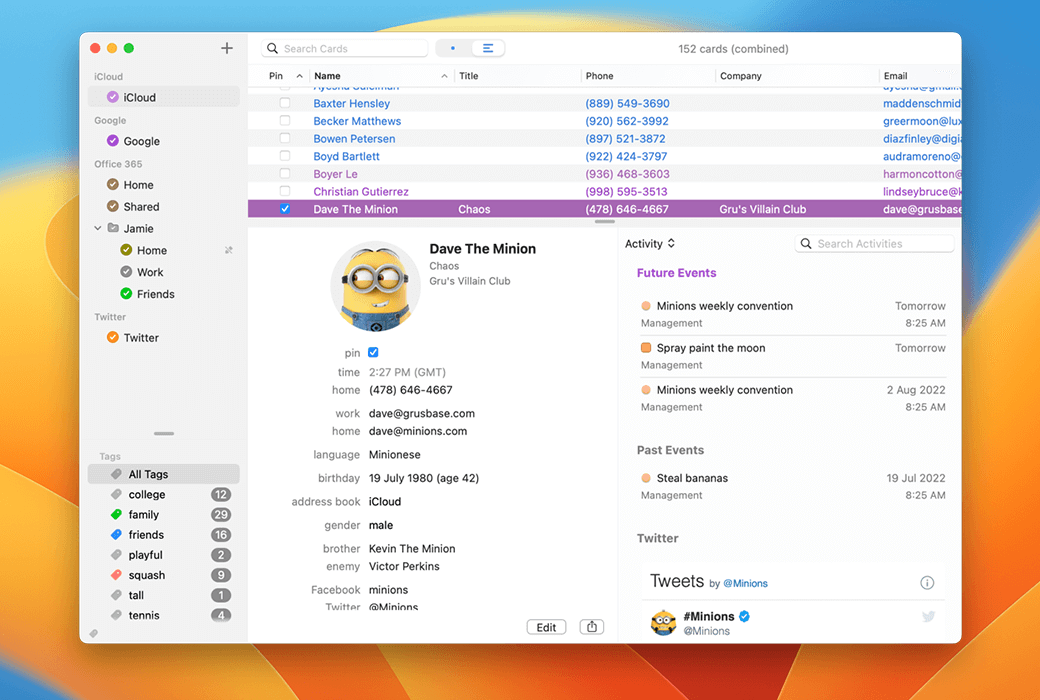
Make managing contacts faster and more efficient. BusyContacts provides the same functionality and flexibility as BusyCal users on the calendar, seamlessly integrating with BusyCal to form a flexible and easy-to-use CRM solution for managing calendars and contacts
BusyContacts synchronizes with the built-in "contacts" application on macOS (via iCloud), which means it also synchronizes with any devices linked to iCloud accounts (including iPads and iPhones). BusyContacts supports all leading cloud services, including iCloud, Google, Office 365, Exchange, Fastmail, Twitter, and other third-party CardDAV servers.
label
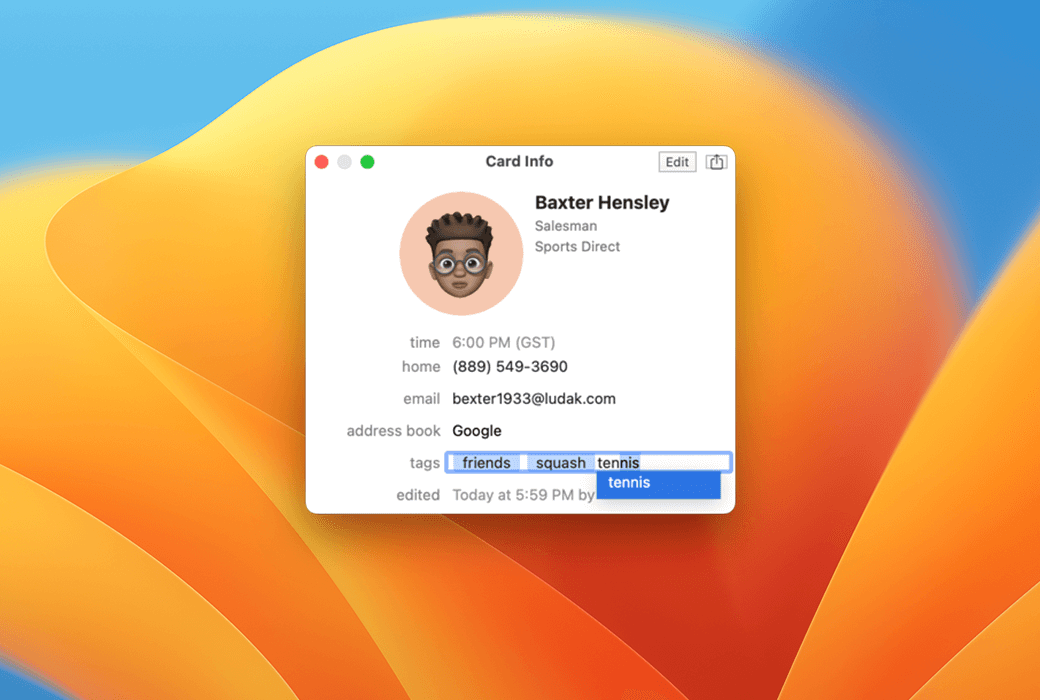
Tags are a flexible method for categorizing and filtering contacts among busy contacts. You can assign multiple tags to each contact, and the tag cloud allows you to easily filter the contact list.
The tags in BusyContacts are mapped to groups in Apple contacts/iCloud and categories in Outlook/Exchange.
Social network integration
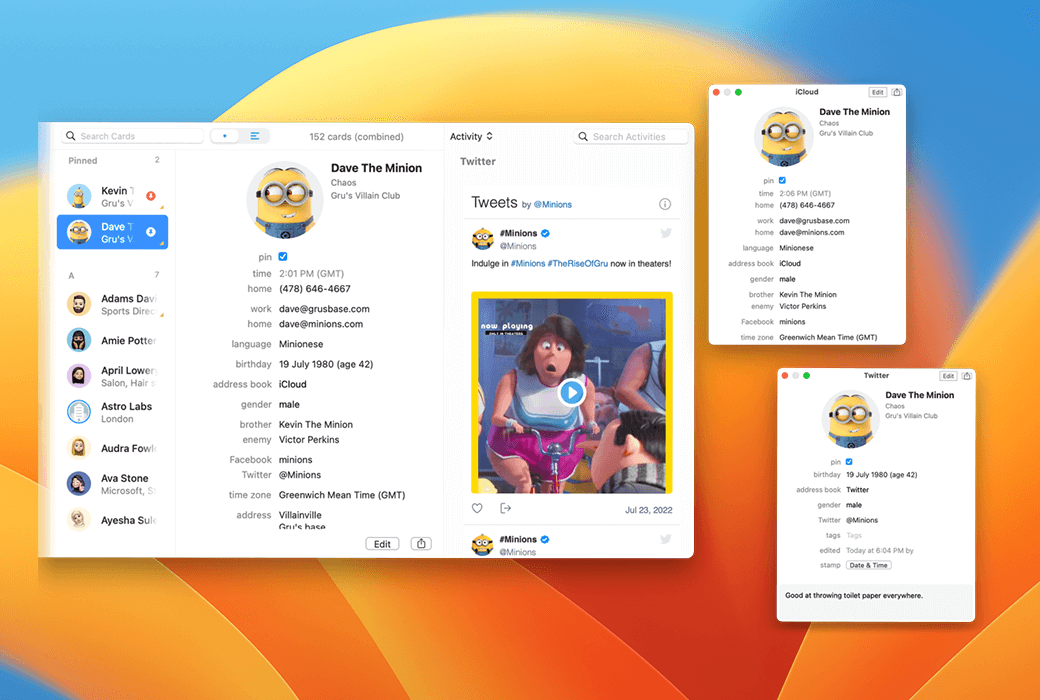
BusyContacts synchronizes with leading CardDAV services and social services such as Twitter, and integrates information about your contacts and relationships from multiple sources. More importantly, BusyContacts links relevant cards from multiple sources and combines them into a virtual card.
Activity List
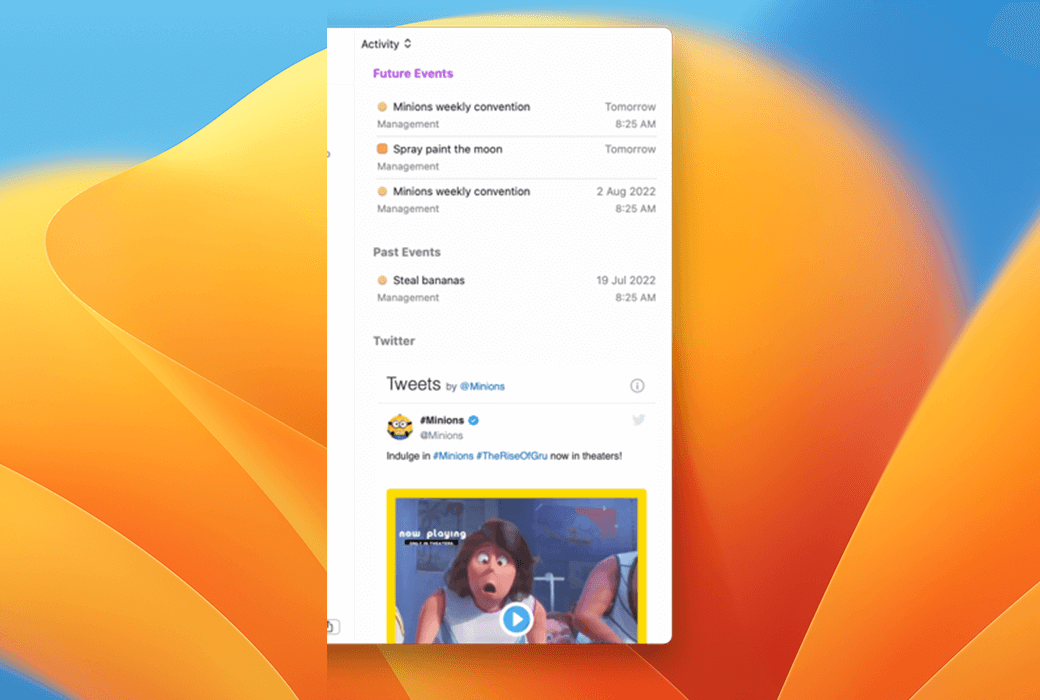
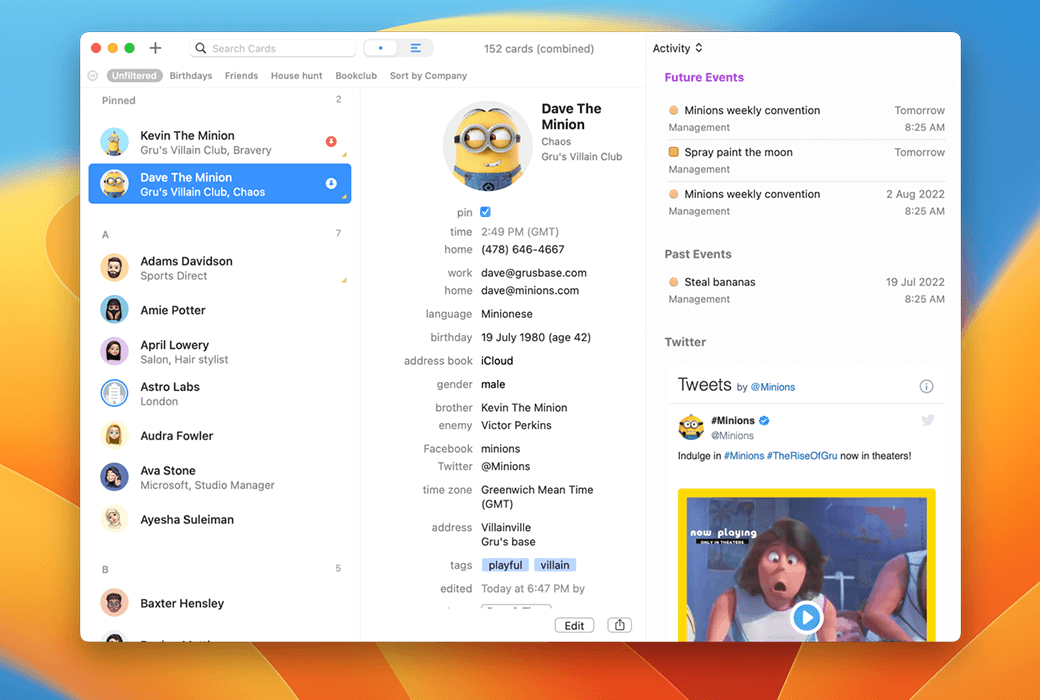
The Activity List displays a list of activities associated with the selected contact in chronological order, including meetings, to-do lists, and other calendar events, communication through email (see compatibility) and messaging, and social network posts.
This is an excellent way to quickly view all types of communication and activities associated with contacts.
Business Integration
BusyContacts integrates with BusyCal, allowing you to link contacts to events and dos in your calendar, providing flexible CRM functionality for scheduling meetings, following up on tasks, and tracking past events.
Intelligent filters
Smart filters are powerful tools used to filter contacts and create saved searches that can be applied with just one click.
You can create smart filters to display contacts that match specific criteria such as text strings, labels, or date of birth. Or apply view settings, such as the displayed columns and sorting order.
Sync and Share
BusyContacts synchronizes with all leading cloud services, including iCloud, Google, Exchange, and other CardDAV servers, allowing you to synchronize contacts with other built-in contact applications running BusyContacts on Mac or macOS and iOS.
You can also share the address book with other BusyContacts users who have read-only or read/write permissions. The address book can be shared through Exchange, Fastmail, Kerio, LAN, and other CardDAV servers that support sharing.

Official website:https://www.busymac.com/busycontacts/index.html
Download Center:https://busycontacts.apsgo.cn
Backup Download:N/A
Delivery time:Manual processing
Operating platform:macOS
Interface language:Supports Chinese interface display, with multiple languages available.
Update instructions:After purchase, it supports 18 months of upgrades and updates.
Pre purchase trial:Free trial before purchase.
How to receive the goods:After purchase, the activation information will be sent to the email address at the time of placing the order, and the corresponding product activation code can be viewed in the personal center, My Orders.
Number of devices:Single user authorization allows the current user to install all of their Mac devices.
Replacing the computer:Uninstall the original computer and activate the new computer.
Activation guidance:To be added.
Special instructions:To be added.
reference material:https://www.busymac.com/help/licensing.html
Any question
BusyContacts supports multiple contacts and synchronizes with multiple services
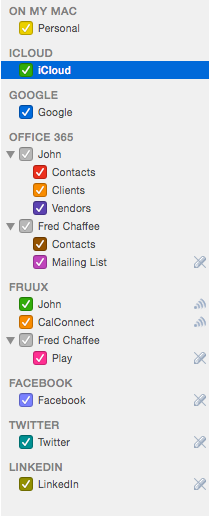
Address Book Source List
Source list displays address books grouped by server

privilege
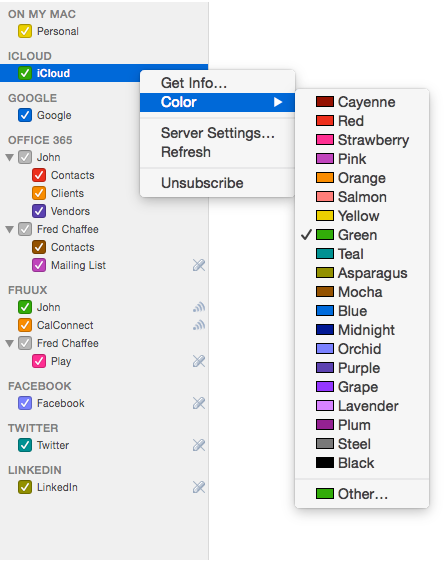
Address book color
You can change the color of the address book (and all its contacts) by holding down the Control key and clicking on it to select a color, or by double clicking on it to open the Address Book Information dialog box. [Note] You can also color the labels

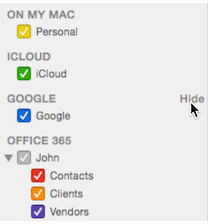
Expand and collapse accounts
You can expand or collapse accounts in the source list by hovering the mouse over the right side of the account name and clicking on the show or hide link

Create Address Book
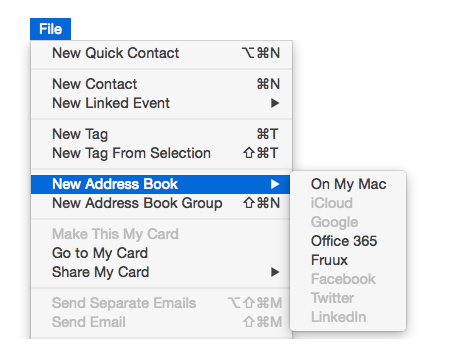
Some servers (iCloud and Google) only allow one address book, while others (Exchange, Fruux, and Zimbra) allow multiple address books. If the server you are using supports multiple address books, you can create an address book by selecting "File">"New Address Book"

Create a 'On My Mac' address book
You can also select "On My Mac" as the location when creating a new address book to create a local address book that is only stored on Mac. These local address books will not synchronize with any online services or other devices
Use case for 'On My Mac' Address Book:
After creating an address book, you can rename it, color it, and choose to nest it in an address book group (see below)
Address Book Group
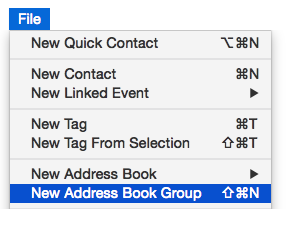
If there are multiple address books on the server, they can be arranged into nested group folders by selecting 'File'>'New Address Book Group'

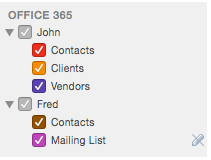
After creating the group, drag the address book to the group folder and reorder it. Then, you can expand/collapse the group by clicking the triangle icon next to the group name, or display/hide all address books in the group by clicking its checkbox

In the above example, there are two groups, John and Fred, with address books nested underneath them
Note: The address book groups in BusyContacts are used to group address books into nested folders. They are different from the groups in macOS contacts, which are mapped to tags in BusyContacts